
Skip to content
logo-dgreen
  • Tutorials
  • FAQs
  • Contact Us
  • Login
  • Portal
Menu
  • Tutorials
  • FAQs
  • Contact Us
  • Login
  • Portal

Update account password in settings

  • User Accounts
  1. Click the settings beside the account username at the upper right side of the screen.

  1. Input the current password and the new password for the account. Make sure to inform your coordinators and immediate heads for any changes done with the account for accountability and documentation.
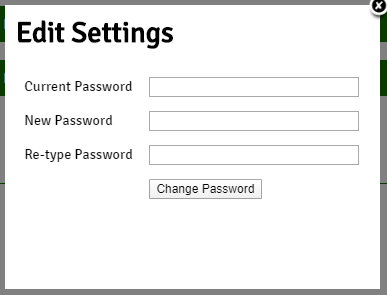
  1. Click Change Password once finished.
PrevUpdate Account Details
Retrieve Account PasswordNext
Other Tutorials

Walkthrough of CFC Members Portal Tabs

Add Pre-existing Members

Add attendance to Activity

Generate QR-Ready ID Labels

Add Formation Track Activity

Create New Account in the CFC Members Portal

FAQs

Why is there no “Household” in the Activities Option?

What to do if we forgot password?

Can multiple devices be used to get attendance in one activity?

How can we delete a member’s double account?

Can “Guest” accounts be used to update member list in the ACS?

Can we delete an inactive member’s account?

Related Tutorials
  • Activities
  • Evangelization
  • FAQs
  • Household
  • Members
  • Reports
  • User Accounts
  • Tutorials
  • FAQs
  • Contact Us
  • Login
  • Portal
Menu
  • Tutorials
  • FAQs
  • Contact Us
  • Login
  • Portal
Help and Learn