
Skip to content
logo-dgreen
  • Tutorials
  • FAQs
  • Contact Us
  • Login
  • Portal
Menu
  • Tutorials
  • FAQs
  • Contact Us
  • Login
  • Portal

Edit Member Record

  • Members
  1. Using the encoder’s account of your chapter go to Members Tab
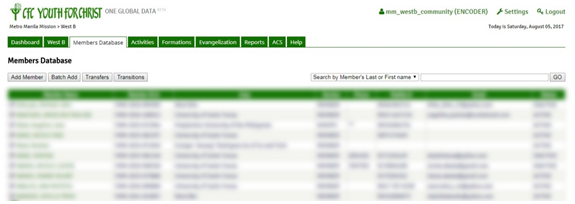
  1. Search and click the name of the member whose record you want to edit
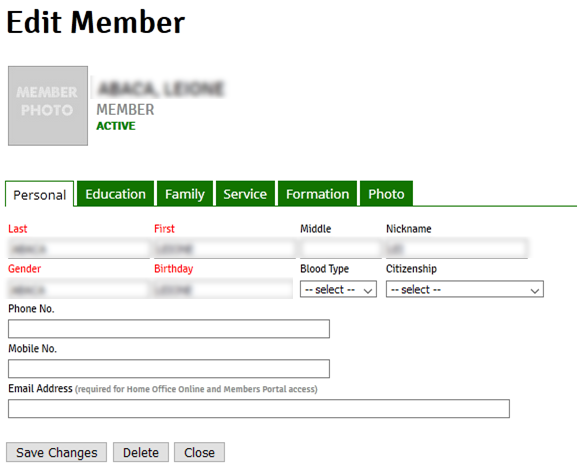
  1. Click Save Changes to save any changes that you made in the record before clicking another tab or closing the record

Note: 

  1. You can edit the following information of the member record in each tab 
  1. Personal Tab 
  • Provides the editing of the specific member in different Tabs. 
  • Personal Tab. Basic Information if the member. 
  1. Education Tab 
  • Provides Education Background details, Special Skills and Illness. With link that could add school or universities if not found. 
  1. Family Tab 
  • Provides Family Background Details (like if parents are CFC, parents name and contact number). 
  1. Service Tab 
  • Provides the service history of the member in the community and in Parish.  
  • Pastoral Service Record. Details of the member’s service area, service, household head and status 
  1. Photo Tab 
  • Provides the uploading of the photo 

1
PrevApprove Transition from Ministry (KFC)
Edit Member ServiceNext
Other Tutorials

Add Household Attendance using the Members Portal

Edit Member Record

How to use ACS (Android) to record attendance?

Access Members Portal through YFC Infosystem

Request Transfer to Area (Inter-Ministry)

Approve Transfer to Area (Inter-Ministry)

FAQs

Why is there no “Household” in the Activities Option?

Can multiple devices be used to get attendance in one activity?

What to do if we forgot password?

How can we delete a member’s double account?

Can we delete an inactive member’s account?

Can “Guest” accounts be used to update member list in the ACS?

Related Tutorials
  • Activities
  • Evangelization
  • FAQs
  • Household
  • Members
  • Reports
  • User Accounts
  • Tutorials
  • FAQs
  • Contact Us
  • Login
  • Portal
Menu
  • Tutorials
  • FAQs
  • Contact Us
  • Login
  • Portal
Help and Learn